When CarPlay GPS signal weak problems show up, the map usually tells a convincing story: your blue position marker drifts onto a frontage road, freezes at an intersection, or insists you are driving through a nearby parking lot. That does not automatically mean the car's GPS receiver is dying. In most cases, the failure sits somewhere between the iPhone, the vehicle's antenna, the CarPlay connection, and the navigation app.
I have seen this behavior in factory systems from Toyota, BMW, Stellantis, and several aftermarket receivers. The frustrating part is that CarPlay looks like one product on the screen, but it is really a chain of cooperating systems. Find the weak link, and the repair can take five minutes instead of a dealer appointment.
First, understand who owns the location data
Apple CarPlay does not magically create a new GPS signal. Depending on the vehicle and head unit, navigation can use location data from the iPhone, the car's built-in receiver, or a blend of both. Wireless CarPlay adds another layer because the phone communicates over Bluetooth and Wi-Fi while the dashboard manages the display and controls.
That architecture explains a common mystery: Google Maps may lose accuracy while the car's native navigation remains perfect, or Apple Maps may work until the phone is placed in a metal center-console tray. A dashboard system can be displaying a map while the phone supplies the position. The screen is not necessarily the sensor.
If CarPlay GPS signal weak behavior appears only in one application, start with that application. If every navigation app drifts, investigate the phone position, connection, and vehicle antenna. This simple split prevents a lot of expensive guesswork.
The five-minute diagnosis I use first
Park safely before changing settings. Open Apple Maps, Google Maps, and Waze one at a time, then compare the position marker. If all three are wrong in the same place, the problem is probably location hardware, permissions, or reception. If only one is wrong, force-close it, update it, and download fresh offline map data.
Next, disconnect CarPlay and use navigation directly on the iPhone. Walk or drive only where it is safe to do so. A correct phone map but an inaccurate CarPlay display points toward the head unit, wireless adapter, USB connection, or vehicle-side GPS integration. An inaccurate phone map means CarPlay is probably innocent.
Also check whether the problem follows the phone. Try a second iPhone for a short trip. If one phone works and another wanders, compare iOS versions, cases, VPN settings, and Location Services permissions before blaming the car.
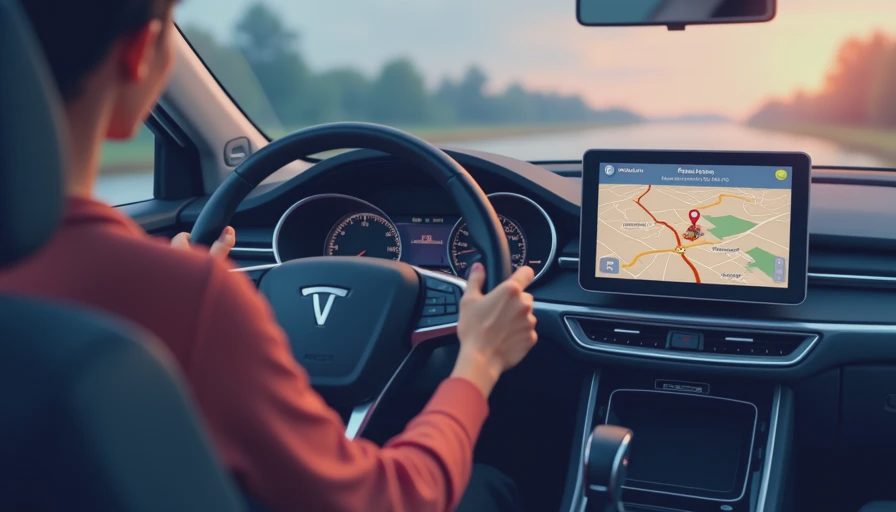
Fix the phone and connection before replacing anything
Start with Settings, Privacy & Security, Location Services. Location Services should be enabled, and your navigation app should have permission to use location while driving. Precise Location is important for turn-by-turn guidance. Low Power Mode can also limit background activity, so turn it off temporarily during testing.
Then restart the iPhone and the vehicle's infotainment system. A normal screen-off state is not always a full reboot; many head units continue running in a low-power mode after the ignition is switched off. A longer lock period or the system's documented restart procedure can clear a stuck CarPlay session.
For wired CarPlay, use a short, data-capable cable. A cable can still charge an iPhone while its data conductors are failing. For wireless CarPlay, remove the vehicle from Settings, General, CarPlay, forget the phone in the vehicle, and pair again. Keep the phone out of a deep console, under a seat, or beside a large metal object. In my testing, simple phone placement has caused more apparent CarPlay GPS signal weak complaints than people expect.
Do not install a wireless adapter as your first move. Adapters from brands such as Ottocast and Carlinkit can make older vehicles more convenient, but they add firmware, Wi-Fi, and power-management variables. Diagnose the factory connection first.
When the car is the actual suspect
If multiple phones and navigation apps fail in the same vehicle, inspect the vehicle-side clues. A loose or damaged roof antenna, shark-fin antenna, or GPS coax connection can reduce reception. Water intrusion near an antenna base is another plausible cause, especially after a windshield replacement or roof work. This is an electrical diagnosis, not a map-setting problem.
The timing matters. Did the issue begin after a software update, battery replacement, dash installation, windshield work, or an infotainment repair? Note whether the marker fails in open areas, tunnels, parking garages, or everywhere. GPS naturally struggles in dense urban streets and under heavy tree cover, but it should recover after returning to open sky.
Factory systems from Toyota, Honda, Ford, and Stellantis can behave differently because each automaker decides how much location work happens in the head unit versus the phone. Some systems report a useful vehicle position to CarPlay; others lean heavily on the connected iPhone. That is why an identical phone can behave differently in two cars.

Updates, resets, and the repair threshold
Update iOS and the navigation apps, but do not assume the newest release fixes every vehicle interaction. Check the automaker's infotainment update page using the vehicle identification number or exact model year. After an update, perform one controlled test on a familiar route rather than judging the system during a stressful airport trip.
A network settings reset can resolve stubborn wireless CarPlay behavior, but it removes saved Wi-Fi networks and Bluetooth pairings. Use it after simpler steps, not before. A full infotainment factory reset is more disruptive because it can erase radio presets, user profiles, and personalized settings. Back up what matters first.
If CarPlay GPS signal weak symptoms continue with two phones, three apps, and open-sky testing, schedule service and describe the evidence precisely. Ask the technician to check GPS antenna connections, receiver diagnostics, and infotainment software rather than simply deleting and re-pairing the phone. A useful service note says, “Both phones drift in Apple Maps and Google Maps, while the vehicle navigation remains accurate,” or the reverse. Specific observations shorten the hunt.
My practical verdict
Treat CarPlay GPS signal weak behavior as a signal-chain problem. First compare apps, then compare phones, then compare CarPlay with standalone phone navigation. Confirm permissions, restart both systems, test a known-good cable, and keep the phone in open view. Only after those steps should you investigate an antenna or head-unit fault.
The good news is that many failures are recoverable without replacing hardware. The bad news is that a drifting position marker is a safety issue, not merely an annoying interface quirk. Pull over before troubleshooting, and do not follow a frozen route into an unsafe turn.
I keep a familiar three-mile test loop for exactly this reason: open roads, one underpass, and enough intersections to expose a bad position estimate. It is less dramatic than blaming the entire dashboard, but far more useful. Bench-tested. Kid-tested. When the map is wrong, find the component lying to it.