When Android Auto Spotify not playing becomes the first problem you meet on a morning drive, the cause is usually less dramatic than a failed infotainment computer. In most cases, the phone and vehicle have connected, but one part of the audio chain has lost track of the handoff. That could be Spotify, Android Auto, Bluetooth, the USB cable, or the car's own media source selection.
The useful approach is to troubleshoot in layers instead of repeatedly tapping the same Play button. I use the sequence below because it separates phone problems from head-unit problems quickly. It also works well when a child is asking for a snack from the back seat and you need music restored before the next traffic light.
Start with the simple audio checks
First, confirm that the phone itself can play Spotify. Disconnect from the car, open Spotify on the phone, and play a downloaded track. If the track will not start there, Android Auto is not the main suspect. Check whether Spotify is signed in, whether Offline Mode is enabled accidentally, and whether the phone has a usable data connection for streaming.
Next, inspect the car's audio source. Many vehicles have separate volume levels for media, navigation prompts, phone calls, and voice assistants. Start a track and turn the physical volume knob up while the track is supposedly playing. A low media volume can look exactly like an app failure, particularly in Toyota, Volkswagen, Hyundai, and Stellantis systems that remember different levels for different sources.
Also check that the car is not still listening to terrestrial radio, SiriusXM, or a second Bluetooth device. Some head units show Android Auto on screen while quietly keeping the previous source active. Select the Android Auto media tile manually, then pause and resume the track from the steering-wheel control.
Restart the connection in the right order
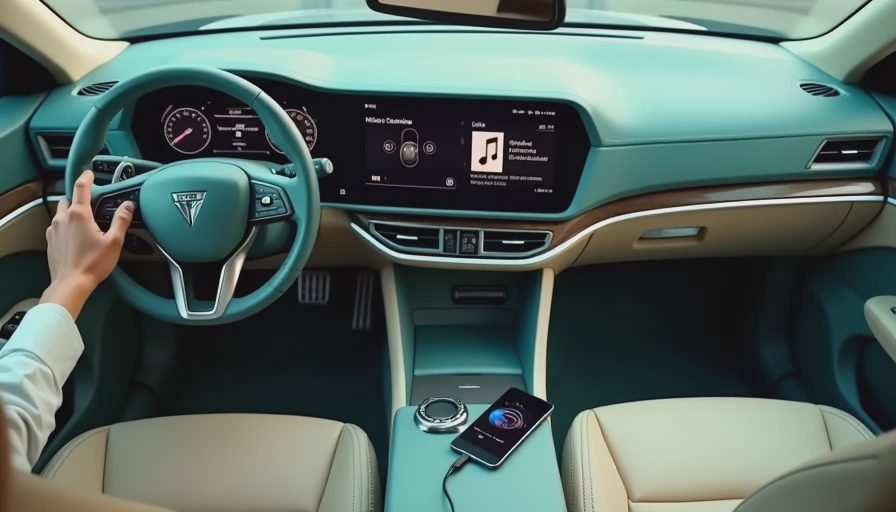
If Android Auto Spotify not playing continues, perform a complete connection reset. Park safely, unplug the USB cable if you use a wired connection, and close Spotify and Android Auto on the phone. Turn the vehicle off, open and close the driver's door, and wait a minute before restarting. This gives some infotainment systems time to shut down their media session instead of leaving a frozen session in memory.
For wired Android Auto, use a short, data-capable USB cable. A cable that charges reliably can still have damaged data lines. Cables supplied with recent Samsung Pixel or Motorola phones are generally a better starting point than a very thin promotional cable. Try a different USB port too; some vehicles include one port for phone projection and others only provide power.
For wireless Android Auto, turn Wi-Fi and Bluetooth off and back on, then reconnect from the phone's Android Auto settings. Wireless projection uses Bluetooth for the initial handshake and Wi-Fi for the larger data connection. If either link is stale, the screen can connect while media controls fail.
Repair Spotify without deleting everything
When Android Auto Spotify not playing affects only Spotify, repair the app before resetting the entire phone. On Android, open Settings, Apps, Spotify, and Storage, then clear the cache. This removes temporary files, not your playlists or account. Restart Spotify and test a downloaded album before reconnecting to the car.
Then check Spotify's battery settings. Aggressive background restrictions can suspend playback when the phone screen is locked or Android Auto is running. Set Spotify to an unrestricted or optimized battery setting, depending on your phone's menu, and allow notifications if you use playback controls from the vehicle.
Update Spotify and Android Auto through Google Play, but do not update while driving. App updates sometimes change compatibility with older head units, yet staying several releases behind can also leave a known connection bug in place. If the problem began immediately after an update, signing out and back in is a sensible next step. Reinstalling Spotify should be the final app-level measure, because it removes downloaded music and requires another full login.
Look for audio focus conflicts
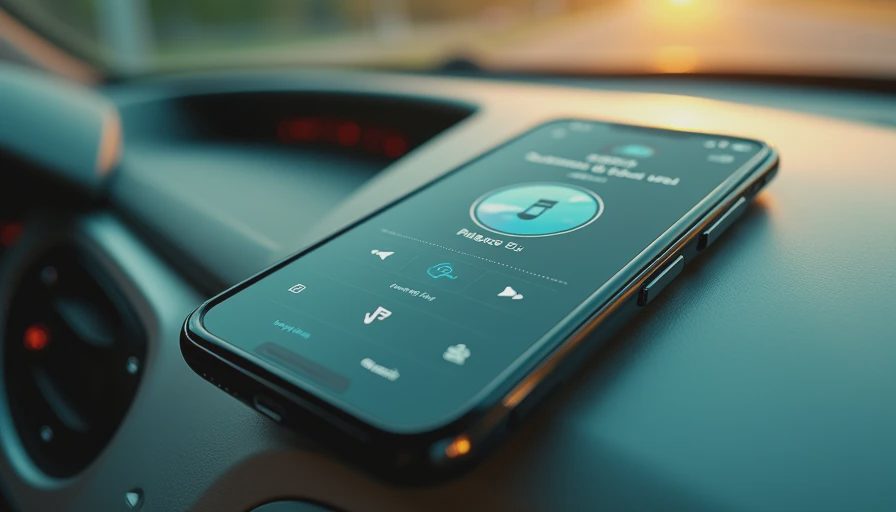
Android Auto Spotify not playing can be an audio-focus problem rather than a broken stream. Audio focus is the operating system's way of deciding which app gets to speak. Google Maps or Waze can temporarily lower music for directions, while a messaging app, podcast app, or voice assistant can pause Spotify altogether.
Test with navigation closed and notifications minimized. If Spotify works until a route begins, inspect the navigation app's voice settings and try a different guidance volume. If it stops after an incoming call, end the call completely and wait several seconds before pressing Play. A call session can remain logically active even after the call screen disappears on an older head unit.
Disable other media apps temporarily, including YouTube Music, Audible, Amazon Music, and podcast players. Android Auto can expose several media apps at once, and a stale playback session from one of them can capture the controls. You do not need to uninstall anything; pause those apps from the phone and test Spotify alone.
Reset Android Auto's car profile
If Android Auto Spotify not playing happens in one vehicle but not another, the saved car profile deserves attention. On the phone, open Android Auto settings and review previously connected cars. Remove the affected vehicle, restart the phone, and pair it again. This forces a new projection session and clears settings associated with the old USB or wireless handshake.
You can also check Android Auto's developer and notification settings, but avoid changing obscure options without a reason. The more useful checks are that Android Auto is enabled, the phone is unlocked during initial setup, and the vehicle has permission to access contacts and notifications where required. Some manufacturers hide projection permissions under a Connectivity, Smartphone, or Device Connection menu.
A factory reset of the car's infotainment system should come much later. It can erase radio presets, paired phones, driver profiles, and navigation preferences. Resetting the phone's network settings is also disruptive because it removes saved Wi-Fi networks and Bluetooth pairings. Use those options only after trying another phone and cable.
Know when the car is the problem
Try a second Android phone with the same cable and Spotify account if possible. If both phones fail, the vehicle's software, USB port, or projection module becomes more likely. If only one phone fails, focus on its app permissions, Android version, battery management, or network behavior.
Older systems from Ford SYNC, Toyota Entune, Uconnect, and Volkswagen MIB can behave differently even when the phone reports a successful connection. Check the automaker's support page for infotainment updates, and ask a dealer whether a software campaign applies to the head unit. Do not assume a new phone automatically fixes an old projection implementation.
For a temporary workaround, play Spotify over standard Bluetooth instead of Android Auto. You lose the richer album artwork and on-screen browsing, but playback can remain stable while you isolate the projection fault. Keep the phone mounted and choose music before moving; the best interface is still the one that does not distract you in traffic.
The fastest troubleshooting sequence
When Android Auto Spotify not playing blocks the commute, use this order: test Spotify on the phone, select the car's Android Auto media source, raise media volume, restart both devices, replace the cable, clear Spotify's cache, update both apps, remove and recreate the car profile, and test a second phone. That sequence moves from reversible checks to more disruptive ones.
If the issue survives every step, document the phone model, Android version, Spotify version, vehicle model year, connection type, and whether other media apps work. That information is far more useful to a dealer or app support team than saying the music “just stopped.” Bench-tested. Kid-tested. The goal is not merely to make Spotify play once; it is to identify which link in the cockpit's software chain failed so you can fix it confidently next time.