The best CarPlay head unit with physical buttons is not necessarily the one with the largest display or the longest feature list. It is the unit you can operate without looking down while merging, wearing gloves, or reaching around a child seat. After years of watching touchscreen decisions ship into real cockpits, I have learned that tactile controls are not nostalgia. They are useful human-machine interface hardware.
Apple CarPlay handles navigation, messages, music, and calls well, but the screen still needs a dependable way to control volume, track selection, and sometimes the display menu. A good aftermarket receiver can make an older vehicle feel current for roughly $350 to $900 before installation. The trick is separating genuinely usable hardware from a glossy screen attached to a frustrating interface. Bench-tested. Kid-tested.
Why physical controls still matter
A touchscreen is flexible, but flexibility comes with a cost: you must locate a virtual target before you can press it. A knob or button gives your hand a physical reference point. You can turn the volume down when Maya starts yelling from the back seat without taking your eyes off traffic. You can skip a podcast episode while wearing Michigan winter gloves. That difference sounds small until you use the receiver every day.
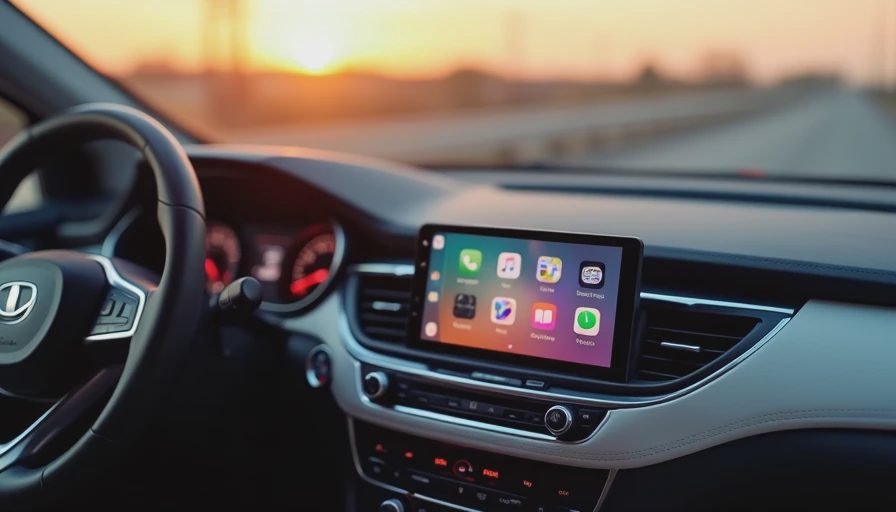
Look for a real rotary volume knob first. Large buttons for home, back, track forward, and voice control are also valuable. Capacitive buttons can look clean, but they provide little confirmation when the road is rough. Some receivers use a narrow row of mechanical keys, while others combine a knob with touch-sensitive strips. I prefer a generous knob and at least three distinct buttons because they remain understandable after six months, not just during an installation-video close-up.
The best CarPlay head unit with physical buttons also keeps those controls outside the CarPlay software layer. That matters because Apple can change the on-screen layout, while a physical volume control remains predictable. It is a small example of good system architecture: essential actions should not depend on a single software surface.

Screen size is a fitment decision, not a trophy
A nine-inch display can be excellent in a vehicle designed for a floating screen, but it can be awkward in a dashboard built around a traditional double-DIN opening. Measure the opening, surrounding trim, screen depth, and clearance behind the dash before buying. A receiver that technically fits may still block vents, cover factory buttons, or sit too close to the steering wheel.
Installation hardware is where the budget often changes. A basic double-DIN installation might run $150 to $300. Vehicles with steering-wheel controls, factory amplifiers, backup cameras, USB hubs, or integrated climate displays can require an interface costing another $70 to $250. A professional shop should identify whether the receiver needs a data-retention module, antenna adapter, camera adapter, or special dash kit before work begins.
Sony, Kenwood, Alpine, Pioneer, and JVC each offer different combinations of display quality, button layout, wireless connectivity, and audio adjustment. Do not assume the most expensive model is the easiest to use. Photograph the actual front panel and count the controls. Product listings sometimes call a touch-sensitive strip a button, but your fingertip can tell the difference immediately.
Strong candidates for different priorities
Sony's XAV-AX series is often a sensible starting point for drivers who want a clean interface and straightforward CarPlay. Models such as the XAV-AX4000 and XAV-AX6000 are known for compact front panels and modern connectivity, though the exact button layout differs. Confirm whether the current model has the physical control arrangement you want before ordering.
Kenwood Excelon receivers deserve attention when audio adjustment matters as much as screen operation. Their menus can expose more sound-shaping controls than a basic receiver, which is useful for replacing factory audio hardware or balancing a system with an external amplifier. The tradeoff is menu complexity. More options are helpful only if you can find them quickly.
Alpine's iLX line is worth considering for drivers who prefer a simple interface and a familiar rotary control on selected models. Pioneer offers broad compatibility across many price points, but its front-panel layouts vary significantly. Read the manual and look at the rear connections, not merely the product photograph.
For many buyers, the best CarPlay head unit with physical buttons will be the model that matches the vehicle's installation kit and daily habits. Wireless CarPlay is convenient, but wired CarPlay can connect faster and avoid another radio handshake. A driver who makes short trips may prefer a reliable cable; someone who enters the vehicle repeatedly may value automatic wireless startup more.
Test the controls like an engineer, not a shopper
Before committing, make a short test plan. Turn the volume knob with one finger. Press mute or voice control without looking. Check whether the screen is readable in direct sunlight and whether the lowest brightness setting is actually comfortable at night. Plug in an iPhone with its protective case. Then unplug it and test wireless reconnection after the vehicle has been off for several minutes.
Pay attention to boot time. Some receivers are ready almost immediately, while others show a logo long enough to make a short drive feel interrupted. Test microphone quality with the engine, road, and ventilation noise present. Ask whether the backup camera appears automatically in reverse and returns to CarPlay without requiring a second tap.
Do not ignore the steering-wheel control interface. A receiver can have excellent front-panel buttons and still behave poorly with factory controls if the adapter is mismatched. Confirm that volume, track, source, and voice commands work as expected. If your vehicle has a factory amplifier, verify that the replacement receiver supplies the correct signal path rather than forcing an unnecessarily complicated workaround.
A buying checklist that prevents expensive mistakes
Start with the vehicle year, trim, factory radio type, and existing camera. Then identify the opening size and whether the dash uses a single-DIN, double-DIN, or proprietary shape. Next, decide which controls are non-negotiable: a rotary knob, hard volume buttons, a physical home key, or a dedicated voice button.
Set a complete budget rather than comparing receiver prices alone. A $450 receiver can become a $750 project after the dash kit, wiring interface, antenna adapter, camera retention, USB extension, and labor. That can still be good value, especially when the alternative is living with an aging factory interface, but surprise costs are avoidable.
Finally, read the installation manual before purchase. Check phone compatibility, microphone placement, USB requirements, firmware-update procedures, and whether wireless CarPlay is supported on the exact model number. Retailers often group several receivers on one page, and a single missing letter can identify a substantially different unit.
My verdict for daily driving
The best CarPlay head unit with physical buttons balances tactile control, reliable connection, sensible fitment, and a screen that does not demand constant attention. I would choose a well-supported seven- or eight-inch receiver with a substantial volume knob over a larger model covered in nearly invisible touch keys. The best CarPlay head unit with physical buttons is the one that disappears into your routine: turn, press, glance, and drive.
Buy from a retailer or installer that supports firmware updates and vehicle-specific interfaces. Keep the factory receiver until the replacement has passed a week of real use, including nighttime driving, phone calls, navigation rerouting, and the inevitable snack emergency. A cockpit should reduce decisions, not create new ones. That is the standard I use for every recommendation: Bench-tested. Kid-tested.