When CarPlay not showing on screen, the frustrating part is that your iPhone often appears to be connected. It may charge, play a notification sound, or show a tiny USB icon while the dashboard remains stubbornly on the home screen. I have chased this problem through enough family road trips to know that randomly swapping cables is not a troubleshooting method. It is just expensive superstition.
The good news is that most failures come from a short list: a bad data connection, a disabled iPhone permission, an incomplete wireless pairing, or an infotainment system that needs a proper restart. Work through those in order and you can usually find the fault in a few minutes.
Start with the physical connection
If you use wired CarPlay, begin with the cable. Your iPhone needs a cable that carries data, not merely power. Some inexpensive cables will charge the phone perfectly while failing to establish the USB data handshake required by the vehicle. Try an Apple cable or a reputable replacement from Anker, Belkin, or another established accessory brand. Keep it short, ideally around three feet, and avoid adapters stacked on adapters.
Inspect both ends for lint, bent contacts, or a loose fit. Pocket debris inside an iPhone port is surprisingly common. Do not scrape the port with metal; use careful compressed air or have the port cleaned safely. Then try every USB port marked with a smartphone or CarPlay symbol. In many vehicles, only one port connects to the head unit. The other ports are power-only, which is a design decision that creates needless confusion.
If CarPlay not showing on screen after a cable swap, unlock the iPhone and watch for a prompt asking whether the vehicle is allowed to use CarPlay. Tap Allow. A locked phone can prevent the first authorization step from appearing clearly.
Check the iPhone settings that quietly block CarPlay
On the iPhone, open Settings, then General, and select CarPlay. If your vehicle appears in the list, tap it and choose Forget This Car. This removes the old pairing record, which can become corrupted after an iOS update, a battery replacement, or a change from wired to wireless use. Reconnect from the beginning rather than repeatedly tapping the same failed connection.
Next, go to Settings, Screen Time, Content and Privacy Restrictions, Allowed Apps and Features. Make sure CarPlay is enabled. This setting is easy to miss, especially on a family phone managed by another adult. Also check Settings, Siri and Search, because Siri must be available for the full CarPlay experience. CarPlay is not just a mirrored phone screen; it relies on approved voice and messaging functions to keep interaction safer while driving.
Turn Bluetooth and Wi-Fi off, wait ten seconds, then turn them back on if you use wireless CarPlay. Wireless systems usually use Bluetooth for discovery and Wi-Fi for the actual high-bandwidth connection. That two-stage process explains why a phone can show as paired in the Bluetooth menu while CarPlay still refuses to launch.
Reset the vehicle side without erasing everything
When CarPlay not showing on screen, the vehicle head unit may be stuck in a half-connected state. Start with the least destructive reset: park safely, turn the vehicle off, open and close the driver door, and wait several minutes before restarting. Some systems remain powered after shutdown while they complete their sleep cycle. Immediately restarting can preserve the same software fault.
If the system has a physical power button, hold it for roughly 10 to 20 seconds, unless the vehicle manual specifies a different method. A reboot is different from a factory reset. It should restart the infotainment computer without deleting radio presets, user profiles, or navigation data. Do not choose “Factory Data Reset” until you have confirmed that a normal reboot and fresh pairing did not work.
For wireless systems, delete the phone from the vehicle’s Bluetooth and connected-device menus, then remove the vehicle from the iPhone’s CarPlay list. Pair again while the car is stationary. Wireless pairing can fail when an old phone nearby answers the discovery request first, so temporarily disable Bluetooth on other phones inside the vehicle.
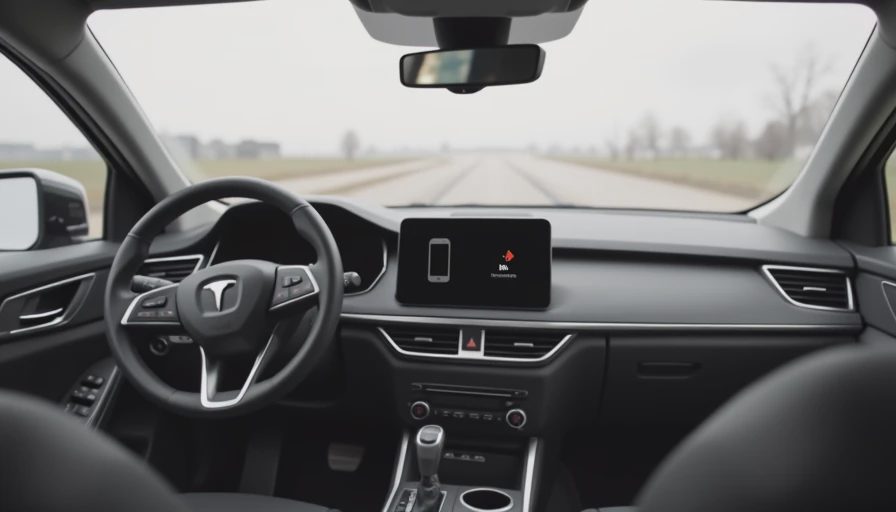
Identify whether the problem is the phone or the car
A second phone is the fastest diagnostic tool. Use another compatible iPhone with a known-good cable, or ask a passenger to try wireless pairing. If the second phone works, the vehicle is probably fine and your original phone needs attention. If neither phone works, focus on the USB port, head-unit software, or vehicle configuration.
This simple A/B test is more useful than changing five settings at once. Engineers use the same principle on a test bench: change one variable, repeat the test, and record what changed. If your phone connects in a rental car but not your own vehicle, compare software versions and connection type. If it fails everywhere, inspect the phone port and update iOS before blaming the dashboard.
Some vehicles also have separate profiles for different drivers. Confirm that the selected profile has smartphone integration enabled. A guest profile can expose the radio and Bluetooth audio while hiding CarPlay permissions. That is a poor interface choice, but it is common in systems designed around multiple driver accounts.
Updates, compatibility, and the annoying edge cases
An iOS update can expose an old head-unit bug, while a vehicle software update can improve compatibility without changing the screen hardware. Check the automaker’s owner portal or dealer service information for infotainment updates. Brands including Ford, Toyota, Honda, Hyundai, Kia, BMW, and Stellantis have used different update paths across models, so do not assume a general internet download is safe. Use only the method intended for your exact vehicle.
Older vehicles can also have limited CarPlay support. Some accept wired connections only, while others require a specific USB port or a factory smartphone-integration option. A wireless adapter cannot add every missing feature. It can convert a supported wired connection into a wireless one, but it cannot repair a failed USB data circuit or make an incompatible head unit support CarPlay.
If CarPlay not showing on screen began immediately after installing an aftermarket adapter, remove the adapter and test a direct wired connection. Adapters add another computer, another firmware layer, and another opportunity for a timeout. Convenience is useful, but every extra box belongs on the suspect list.
The five-minute fix sequence
When CarPlay not showing on screen, use this order:
- Unlock the iPhone and reconnect it with a known-good data cable.
- Try the vehicle’s designated CarPlay USB port.
- Accept the Allow prompt on the iPhone.
- Confirm CarPlay is enabled in Screen Time restrictions.
- Forget the vehicle on the iPhone and delete the phone from the vehicle menu.
- Reboot both the iPhone and infotainment system.
- Test a second iPhone before considering a factory reset.
If the second phone also fails, document the exact symptoms: charging only, Bluetooth audio but no CarPlay, intermittent connection, or a completely missing USB source. That description gives a dealer or independent installer something actionable instead of “the screen is weird.” Ask whether the USB hub, head-unit firmware, and smartphone-integration license have been checked.
The best troubleshooting result is not simply getting the icon to appear once. It is finding the repeatable cause. Bench-tested. Kid-tested. And if the connection still drops every time Maya asks for a snack, you have earned the right to blame the infotainment system.